


|
Adding Groups and Users with Allowed Authorization
A user with an Administrator or Designer role can grant permissions for users or groups to a workbook folder or subfolder.
Steps:
1. Right-click on a folder (except the root folder) and select Permissions on the context menu.
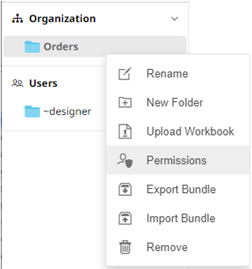
The Permissions dialog displays.
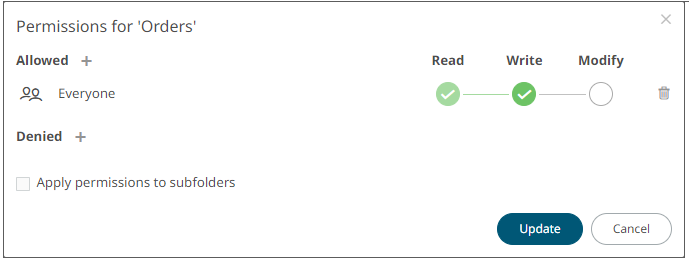
2. Under the Allowed section, click
the Add  icon.
icon.
A new User/Group Allowed section is displayed.
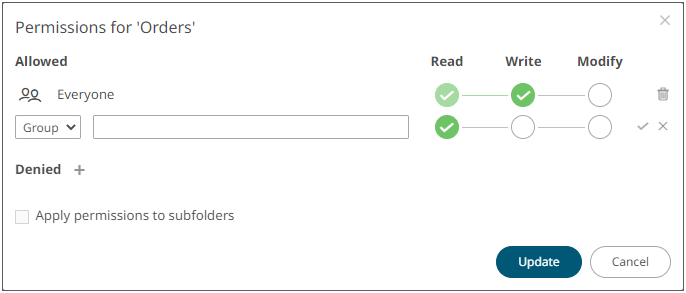
3. Select User or Group to be given permission in the drop-down list.
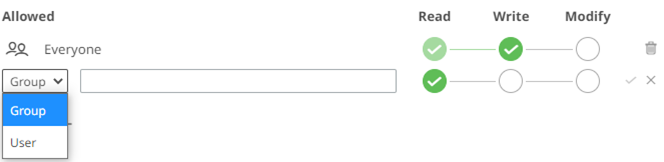
4. Enter the user or group Name.
5. Select the permission level that will be granted to the user or group:
· READ
Permission to read the folder.
· READ + WRITE
Permission to write to the folder and read.
· MODIFY + WRITE + READ
Permission to read, modify, and write to the folder as well as create subfolders.

6. Click  . The user or group is added under the
Allowed list.
. The user or group is added under the
Allowed list.

7. You can either:
· check the Apply Permissions to Subfolders box
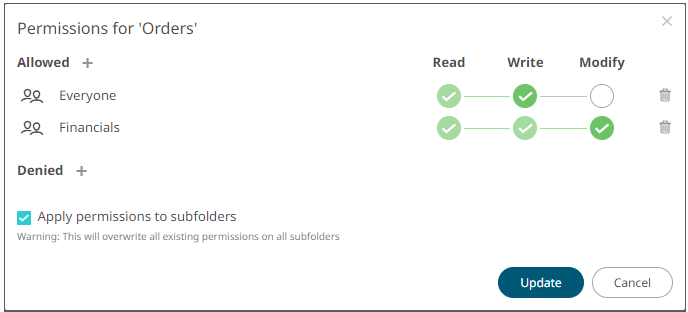
This means the permissions that will be used on all of the subfolders will be fetched from the root folder.
|
NOTE |
The Apply Permissions to Subfolders: · is only enabled when there is an existing subfolder. · does not affect the personal folders.
|
· leave the Apply Permissions to Subfolders box unchecked and modify the permission properties of the subfolders
8. Click  to save the changes.