


|
Define the Default Style Settings of a Theme
When you define the default settings of a theme, you specify the colors and fonts of the workbook, visualizations, filter box, action part title, legend title, and action form.
Steps:
1. To define the default styles of the workbook, click Workbook on the Default Styles tab. The Workbook Settings are displayed.
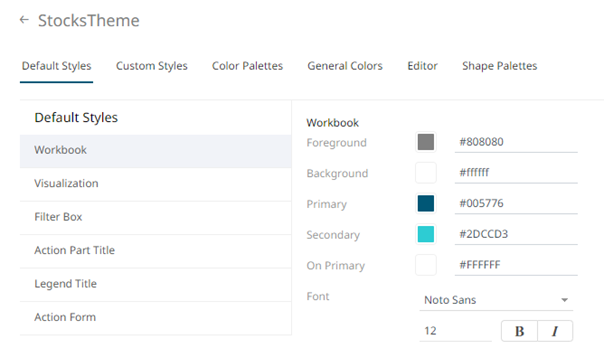
You may opt to modify the colors of the following properties:
|
Property |
Description |
|
Foreground |
Foreground color of the workbook. |
|
Background |
Background color of the workbook. |
|
Primary |
Primary color of the workbook. |
|
Secondary |
Secondary color of the workbook. |
|
On Primary |
Foreground color within the primary color. |
1.1. You can either:
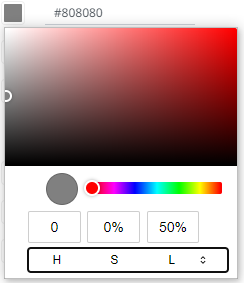
¨ click the corresponding Color box to display the Color dialog to:
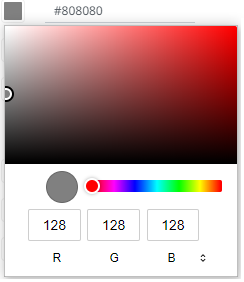
o select the color, or
o click to enter the values
for RGB
for HSL
for the Hex color code
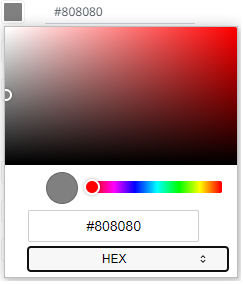
¨ or enter the Hex color code

1.2. Select the Font.
|
NOTE |
The available custom fonts in Panopticon Real Time can be selected in the Font drop-down list. |
1.3. Specify the Font Size.
1.4. Specify whether Bold and Italic.
2. To define the default styles of the visualizations, click Visualization on the Default Styles pane. The Visualizations Settings are displayed.
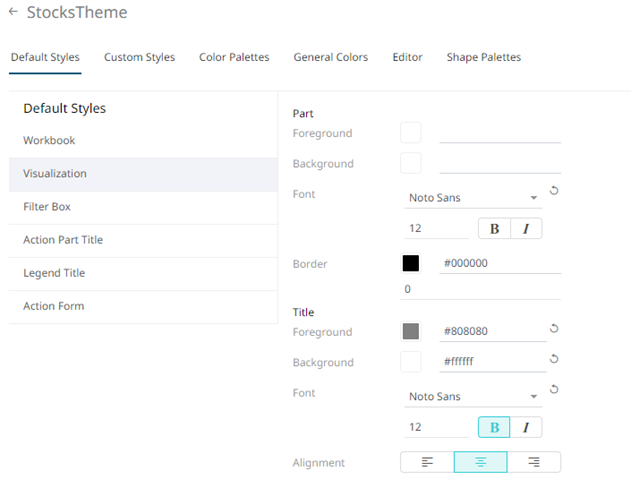
You may opt to modify the colors of the following properties:
|
Property |
Description |
|
Foreground |
Foreground color of the visualizations and title. |
|
Background |
Background color of the visualizations and title. |
|
Border |
Border color of the visualizations. |
2.1. Follow step 1.1 to define the visualization, title, and border colors.
2.2. Select the visualization and title Font.
2.3. Specify the visualization and title Font Size.
2.4. Specify whether Bold and Italic.
|
NOTE |
For the part title, Bold is selected by default. |
2.5. Specify the Border Size of the visualizations.
2.6. Select the visualization title Alignment: Left or Center.
3. To define the default styles of the filter box, click Filter Box on the Default Styles pane. The Filter Box Settings are displayed.
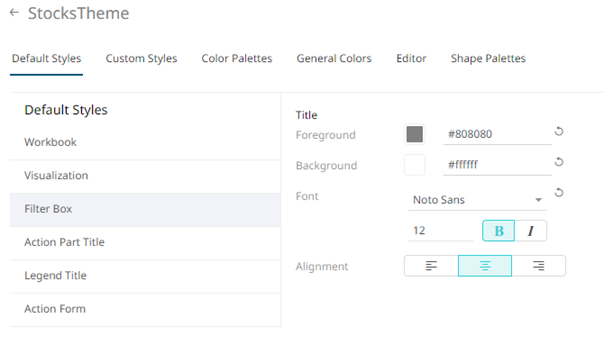
You may opt to modify the colors of the following properties:
|
Property |
Description |
|
Foreground |
Foreground color of the filter box. |
|
Background |
Background color of the filter box. |
3.1. Follow step 1.1 to define the filter box colors.
3.2. Select the filter box title Font.
3.3. Specify the filter box title Font Size.
3.4. Specify whether Bold and Italic.
|
NOTE |
For the filter box title, Bold is selected by default. |
3.5. Select the filter box title Alignment: Left or Center.
4. To define the default styles of the action part title, click Action Part Title on the Default Styles pane. The Action Part Title Settings are displayed.
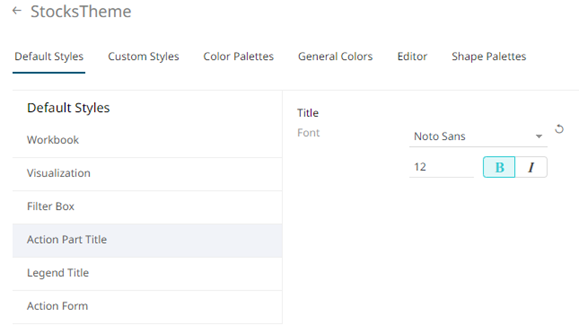
4.1. Select the action part title Font.
4.2. Specify the action part title Font Size.
4.3. Specify whether Bold and Italic.
|
NOTE |
For the action part title, Bold is selected by default. |
5. To define the default styles of the legend title, click Legend Title on the Default Styles pane. The Legend Title Settings are displayed.
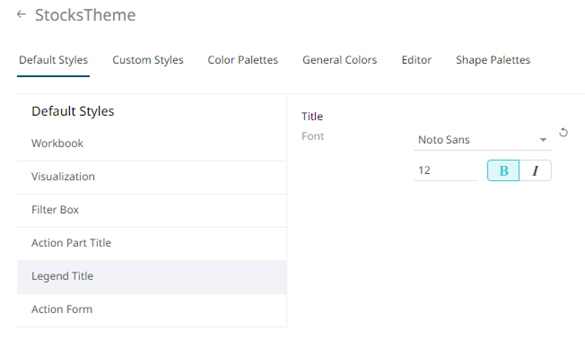
5.1. Select the legend title Font.
5.2. Specify the legend title Font Size.
5.3. Specify whether Bold and Italic.
|
NOTE |
For the legend title, Bold is selected by default. |
6. To define the default styles of the action form, click Action Form on the Default Styles pane. The Action Form Settings are displayed.
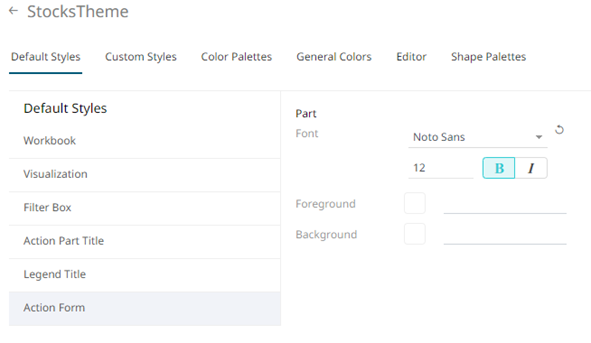
You may opt to modify the colors of the following properties:
|
Property |
Description |
|
Foreground |
Foreground color of the action form. |
|
Background |
Background color of the action form. |
6.1. Follow step 1.1 to define the action form colors.
6.2. Select the action form Font.
6.3. Specify the action form Font Size.
6.4. Specify whether Bold and Italic.
|
NOTE |
For the action form, Bold is selected by default. |
7 Proceed to the Custom Styles tab to specify the custom styles of the theme.