Camera and Mouse Actions
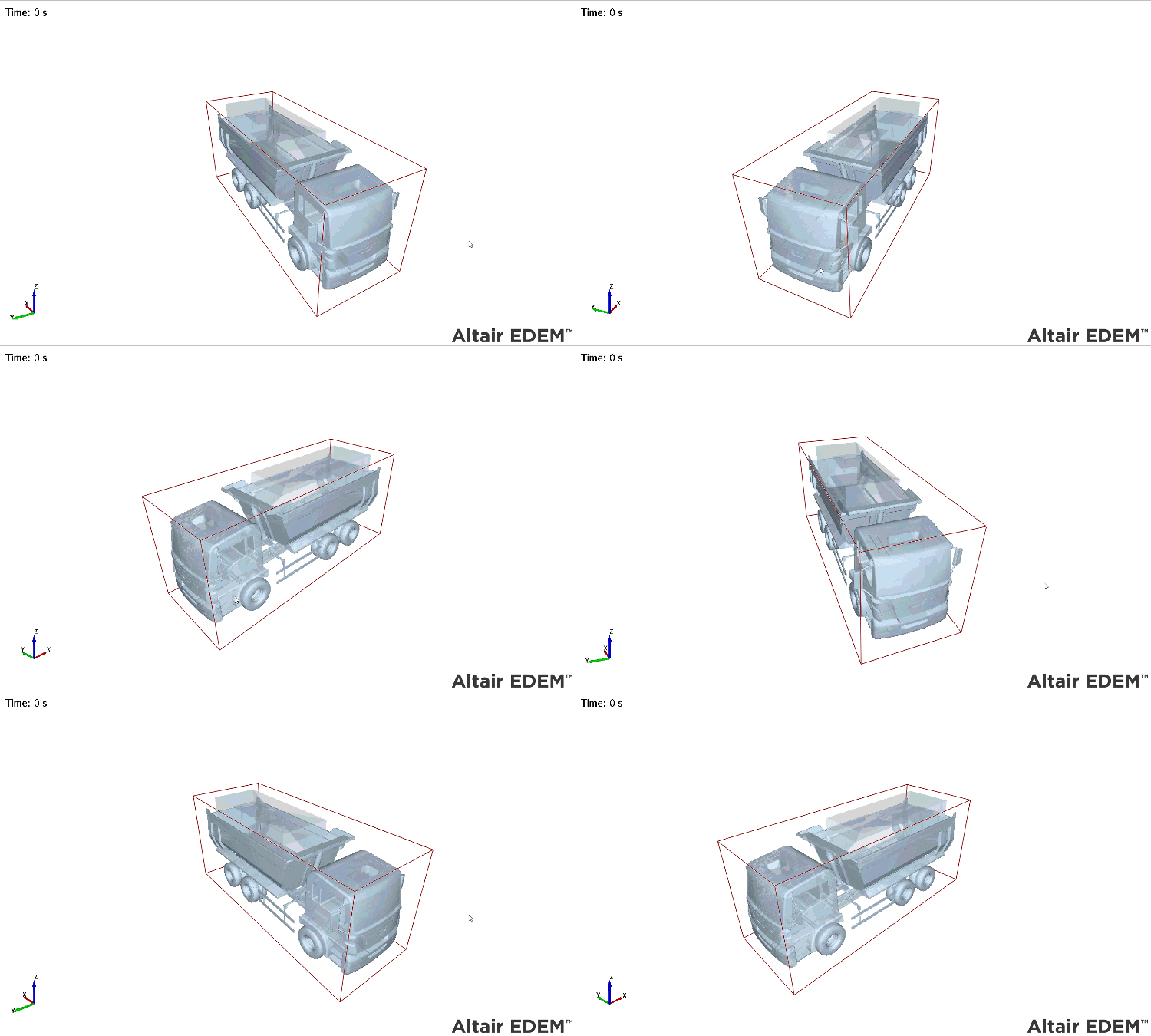
In the Viewer, use the mouse (with modifier keys) to move the camera around the model. You can pan, track, zoom, and rotate the camera. Select Tools > Options > Mouse Configuration tab to configure these controls.
Panning
Press and hold the left mouse button and drag the pointer to pan the position. The Object follows the cursor.
Free Rotating
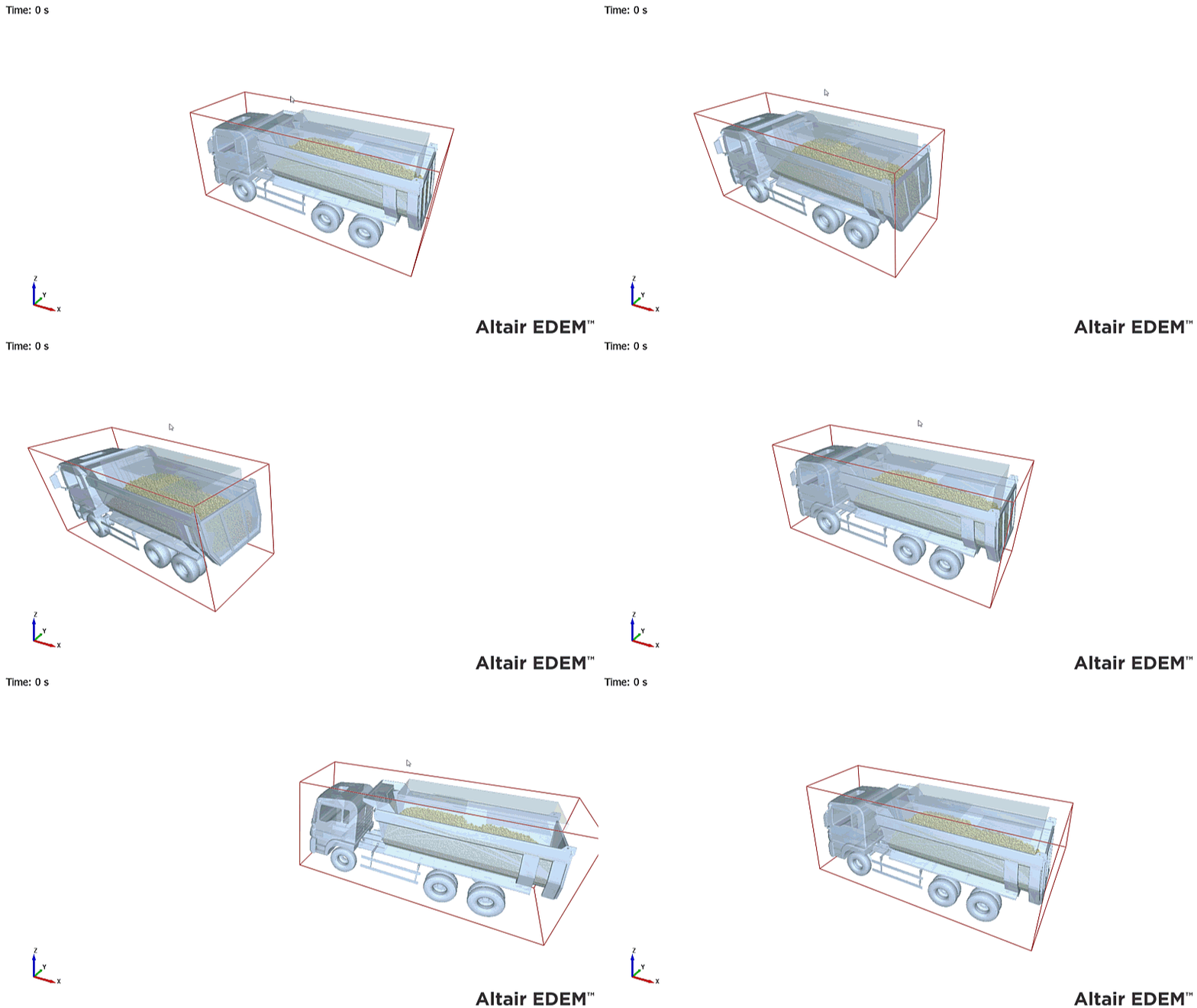
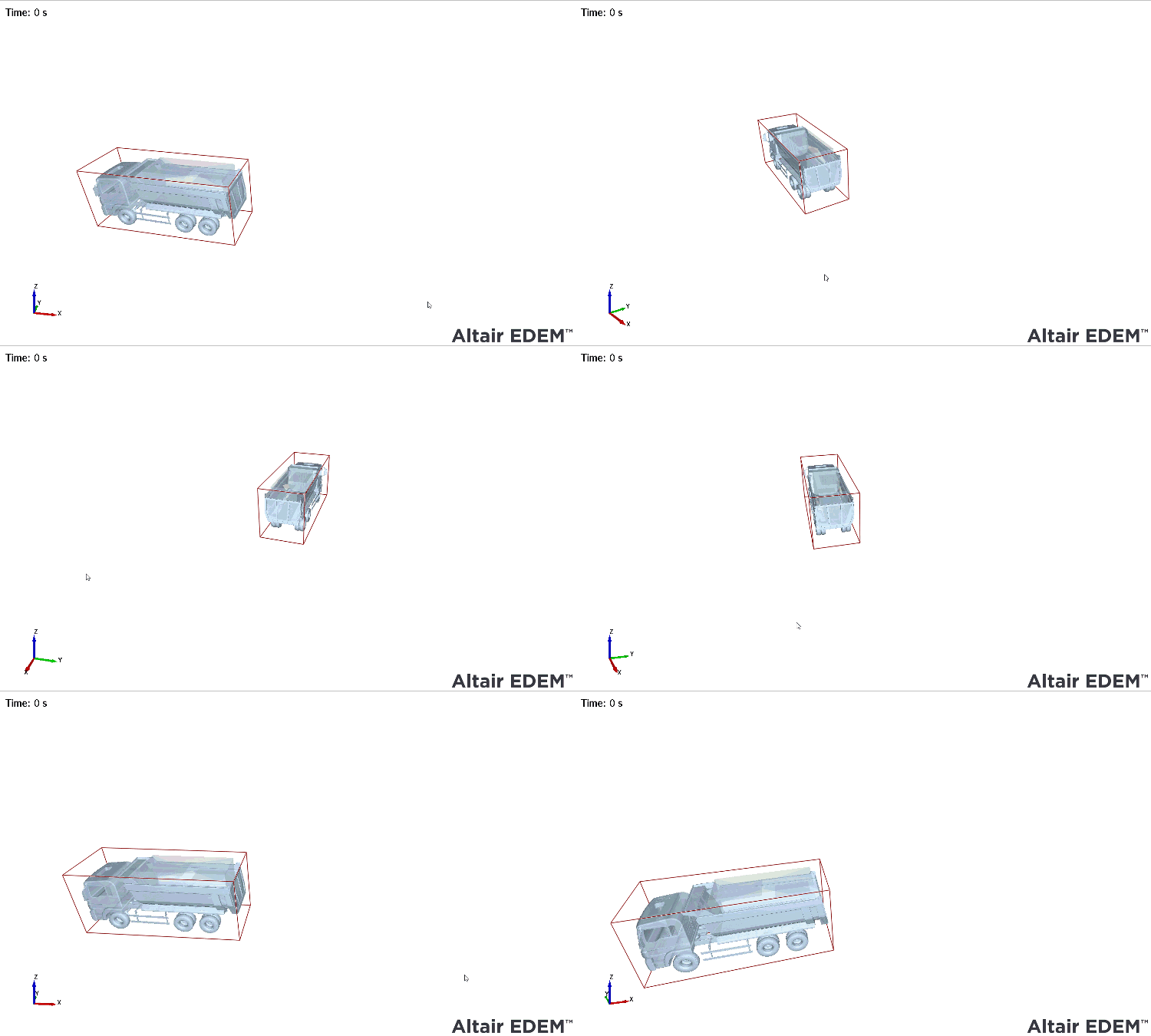
Press and hold the right mouse button to rotate.
Tracking
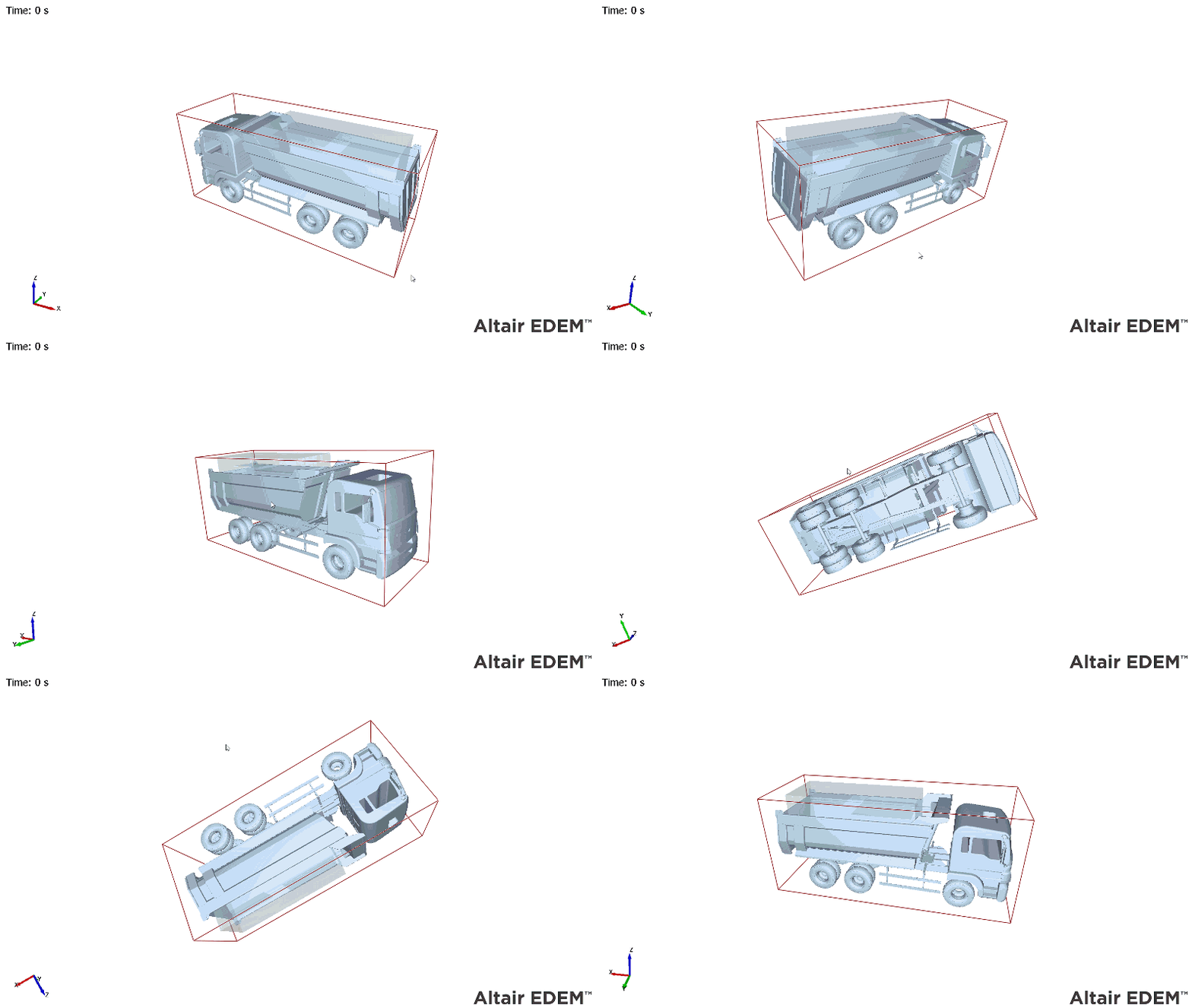
Move the camera forward and backward while keeping a fixed distance from the target. If the pan control is described as moving the camera view in the X and Y axes, then the track would be moving the camera in the Z axis. This can be useful to track objects that may be hidden behind other objects. Usually, when you zoom in on an Object the camera stops at the target position. To maintain the same distance between the camera and the target, hold down the Shift key and then use the left mouse button to start tracking.
Zooming
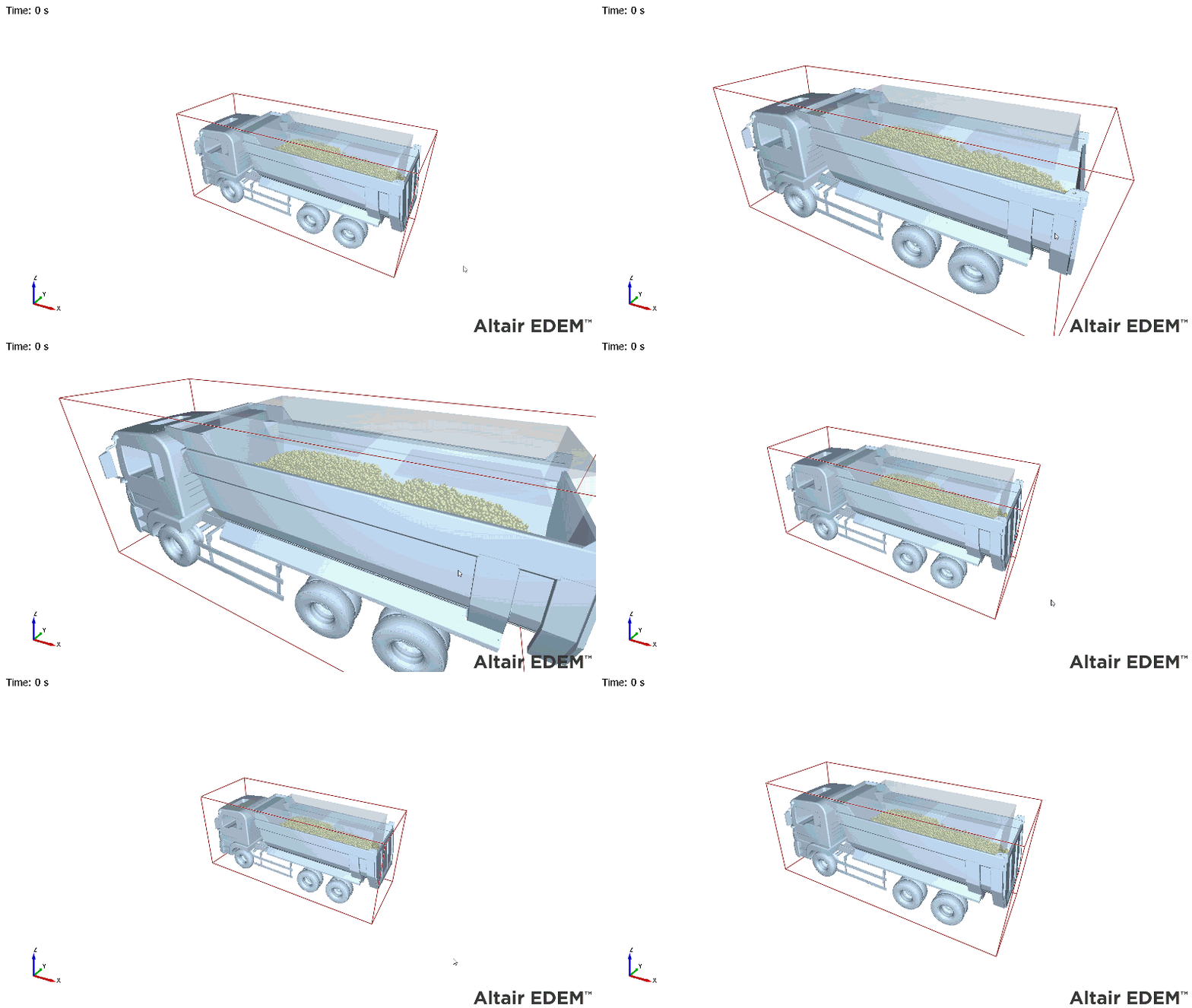
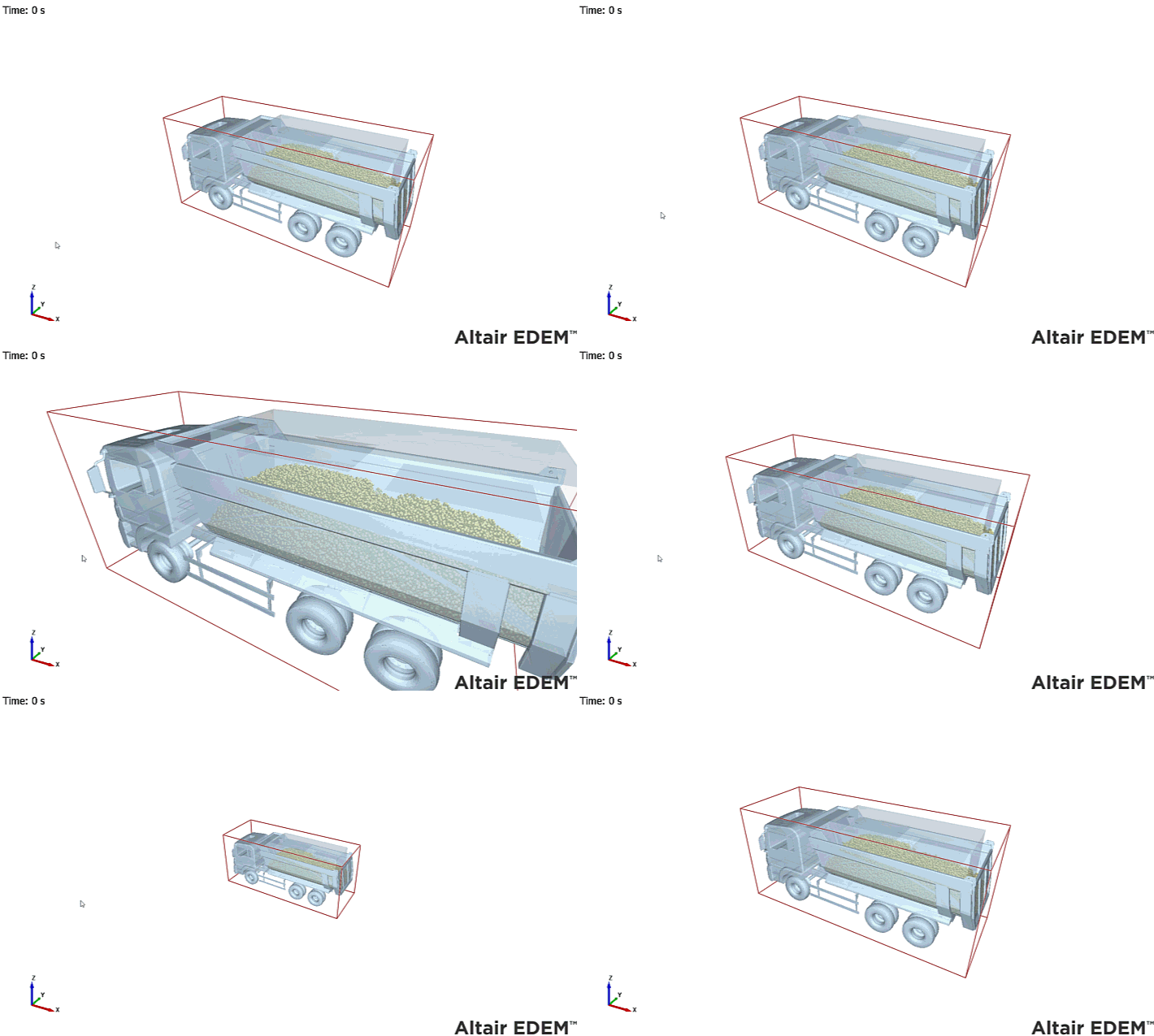
Use the mouse’s scroll wheel to zoom in and out (or press and hold the middle mouse button and move the mouse back and forth).
Zooming to Box
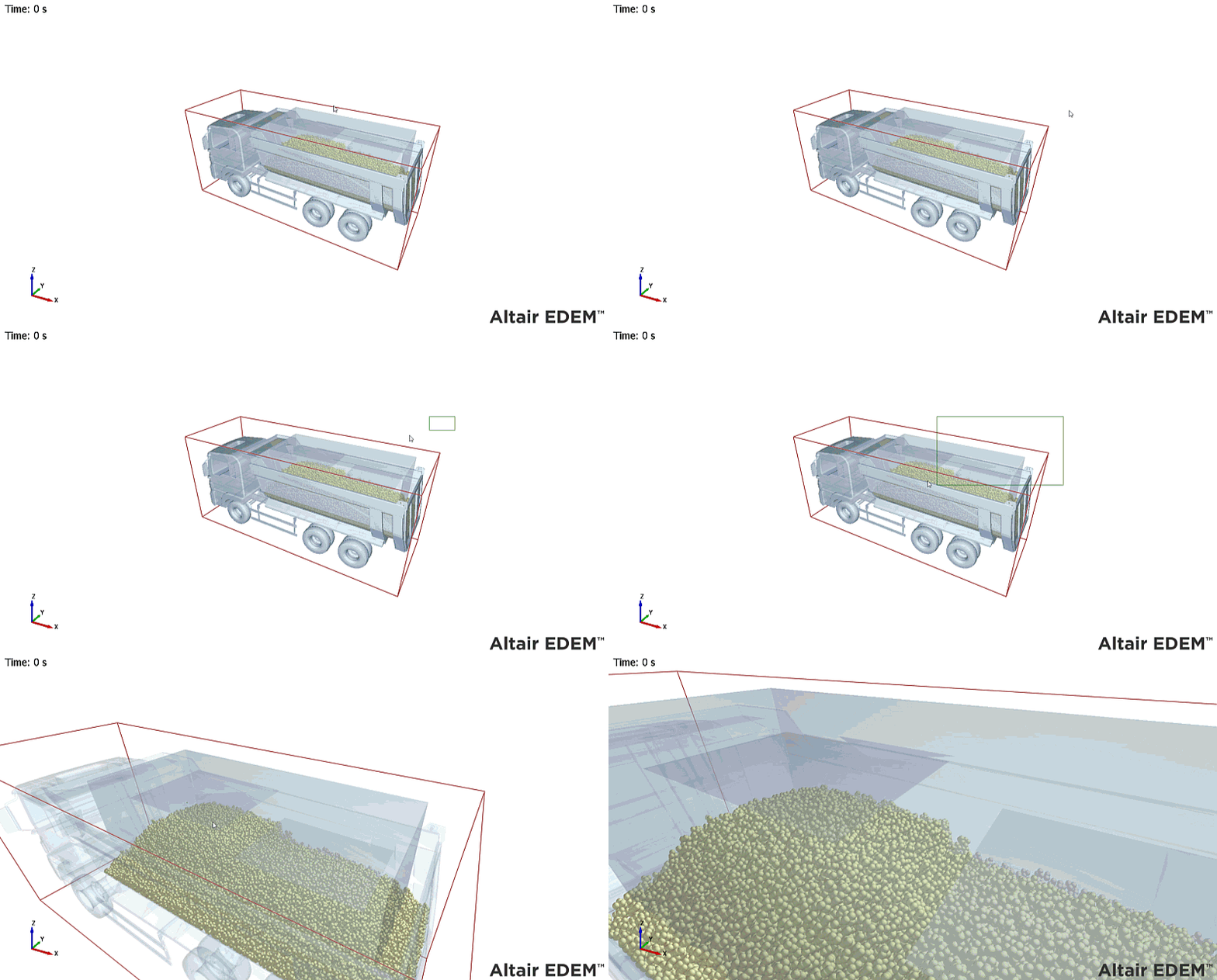
Alternatively, while holding down the Shift key, press and hold the middle mouse button to draw a box to zoom into.
Rotating on Screen Axis
Select Tools > Options > Mouse Configuration to rotate on the screen axis. The screen’s axes are indicated by dotted lines. With the Shift key held down, press and hold the right mouse button to lock the axis. Move the mouse right to rotate the Object around the screen’s right vector.
Rotating on Model Axis
Select Tools > Options > Mouse Configuration to rotate on the model axis. The model’s right axis is indicated by a dotted line. With the Shift key held down, press and hold the right mouse button to lock the axis. Move the mouse up to rotate the Object around the model’s axis closest to the up vector.