Hardware Setup
The following steps are necessary to run EDEM OpenCL GPU.
Graphics Card Drivers
Before running EDEM OpenCL GPU, please make sure that the graphic card drivers installed in your machine are the latest version.
Running the EDEM GPU Device Test
The device test is required before running EDEM OpenCL GPU on a machine for the first time. The device test will check each of the GPUs compatibility and make the GPU cards available to the EDEM OpenCL Simulator. The test will also ensure that the current GPU devices supports OpenCL version 1.2 or more, which needs to be supported in order to make use of Double Precision.
To run the test, go to Tools > Options >Simulator Engine>OpenCL. Under Setup GPU Devices select the relevant GPU devices and click on Start test. It should only take a few seconds. If there is more than 1 GPU card in the same machine, you can select which cards to use to run a simulation. The example below shows the simulator engine tree structure 2 GPUs selected.
Under Test GPU Devices, click Start test. If it is successful, the GPU devices are ready to be selected as Simulator Engines, if not, EDEM OpenCL will provide any information it has about the problem.
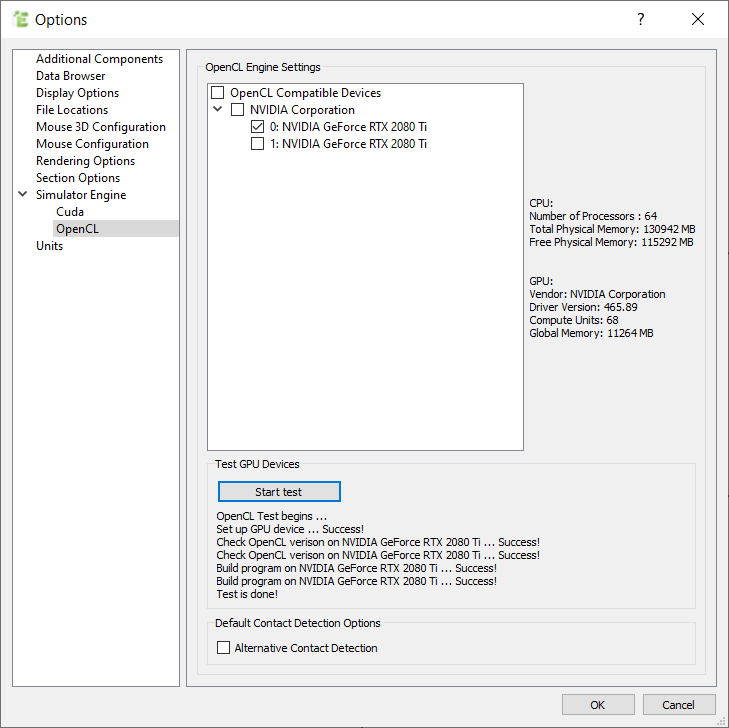
The following example shows that both the 2080Ti cards passed the GPU Device test.
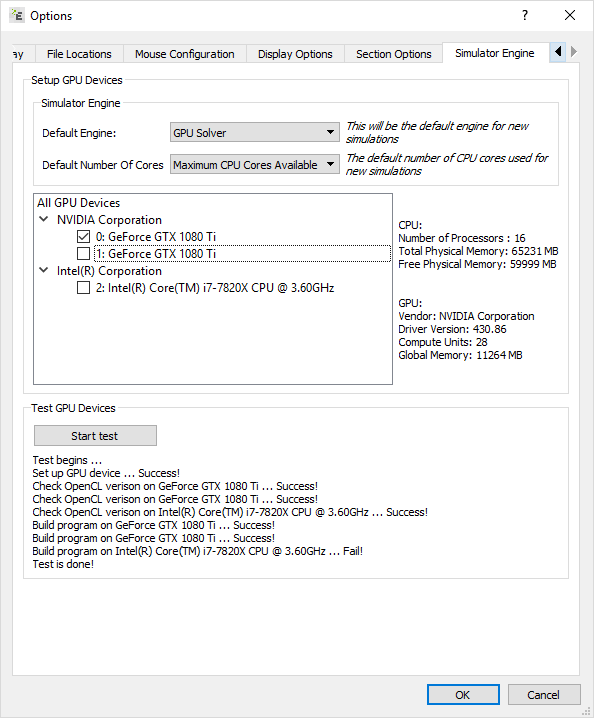
The test has to be run when EDEM OpenCL GPU is run using the GUI, i.e. via a regular EDEM start of Remote Desktop connection. If running via command line the test is bypassed and if the GPU device is not compatible the simulation will not run.
Start Simulating
That is it! Once the test has passed, EDEM OpenCL GPU is ready to go and you can start your simulation as normal.