|
»Click here to display Table of Contents«
|

Delete Parts |

|

|

|

|
|
Delete Parts |
|
|
|

|
|
»Click here to display Table of Contents«
|
Delete Parts |
|
|
|
|
|
Delete Parts |
|
|
|
|
You may choose to delete one or more parts or assemblies from your model. You can select parts and assemblies to delete at the same time if you wish.
| 1. | In the Tree window, select parts and/or assemblies to be deleted. |
Several parts/assemblies can be selected using the SHIFT, CTRL, or SHIFT+CTRL keys.
| 2. | Right-click the mouse button to access the context menu. |
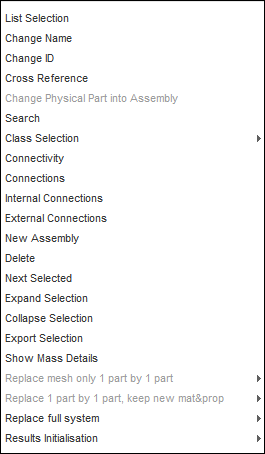
| 3. | Select Delete. |
| 4. | Answer the question in the pop-up dialog. |
All the features (interfaces, added masses, initial velocities, etc.) associated with the deleted parts and/or assemblies are automatically updated.