| 1. | From the Menu Bar, select Connections > Spotweld > Criteria. |
A Spotweld Settings window opens.
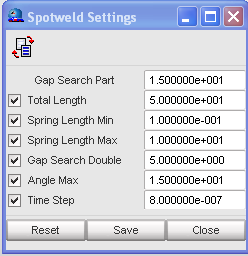
| 2. | Select the appropriate criteria to check by clicking the appropriate check box. |
| 3. | Enter the desired values for each parameter (it is recommended to use the default values). |
| 4. | Validate in the pop-up dialog window with Save. |
| 5. | To reset to the default values, click Reset. |
| 6. | From the Menu Bar, select Connections > Spotweld > Check. |
The folder Spotweld, Modify will open. The spotwelds which do not conform to a criteria are displayed in orange on the list.
To learn why the spotweld is incorrect and to modify it:
| 1. | Select a spotweld in the list. |
| 2. | Click  to display the spotweld and to open the modification menu. to display the spotweld and to open the modification menu. |
| 3. | Check the message in the message window to learn why the spotweld is not correct (message is in green). |
| 5. | Click Save to save the spotweld modification; or |
Click Cancel to cancel the spotweld modification.
| 6. | Click Close to close the menu. |
See also
Spotweld
Export File


