|
»Click here to display Table of Contents«
|

To create a Rigid Wall |

|

|

|

|
|
To create a Rigid Wall |
|
|
|

|
|
»Click here to display Table of Contents«
|
To create a Rigid Wall |
|
|
|
|
|
To create a Rigid Wall |
|
|
|
|
| 1. | From the Menu Bar, select LoadCase > Rigid Wall > Create. |
| 2. | Select the rigid wall type in the window Select RWALL type. |
| 3. | Enter a name in the field beside the Selection type window. |
Infinite planeM0M1 defines the plane normal direction:
|
|
||||||
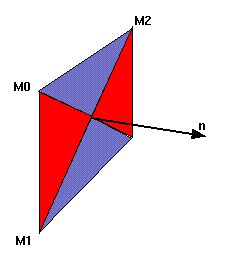
ParallelogramM0M1 ^ M0M2 defines the plane normal direction:
|
|
||||||
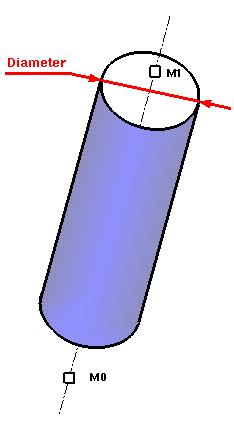
CylinderM0M1 defines the cylinder axis:
|
|
||||||
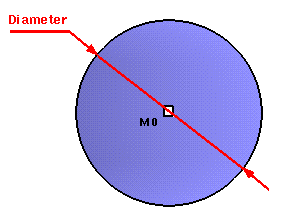
SphereM0 defines the sphere center:
|
|
| 4. | Set a distance to automatically define the secondary nodes. |
or Select nodes using the different tools from the Selection folder.
Button |
Behavior |
|
pick nodes in the graphic window, and then press Enter, right-click the mouse button or select Yes or Cancel in the Dialog menu bar. |
|
add/remove object by ellipse selection. |
|
add nodes by box selection (the default box is rectangular — use the SHIFT key to define a polygon box). |
|
remove nodes by box selection (the default box is rectangular — use the SHIFT key to define a polygon box). |
|
add all nodes. |
|
pick parts in the graphic window, and then press Enter, right-click the mouse button or select Yes or Cancel in the Dialog menu bar. |
|
add parts by box selection (the default box is rectangular — use the SHIFT key to define a polygon box). |
|
remove parts by box selection (the default box is rectangular — use the SHIFT key to define a polygon box). |
|
add the parts selected in the tree. |
|
remove the parts selected in the tree. |
| 6. | For the Friction parameters, select from the following: |
| • | Click Sliding, Tied or Friction and enter the friction coefficient in the corresponding field. |
| 7. | Click Fixed to define a fixed rigid wall. |
or
| • | Click Moving to define a moving rigid wall. In this case, it is possible to define: |
| o | the rigid wall mass: fill in the Mass field. |
| o | the rigid wall initial velocity: fill in the Initial Velocity, Vx, Vy, and Vz fields. |
| 8. | Click See to view the created rigid wall. |
| 9. | Click Save to save the created rigid wall; or |
Click Cancel to cancel the rigid wall creation.
| 10. | Click Close to close the menu. |