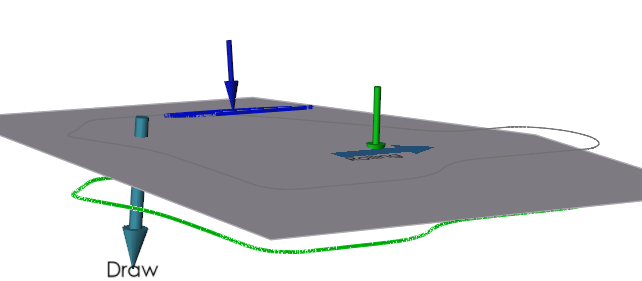
Predict Trim Line
-
From the Tryout ribbon, click the Predict icon.

-
Click the Trim Line icon.

-
Select lines that you would like to predict trim lines for.
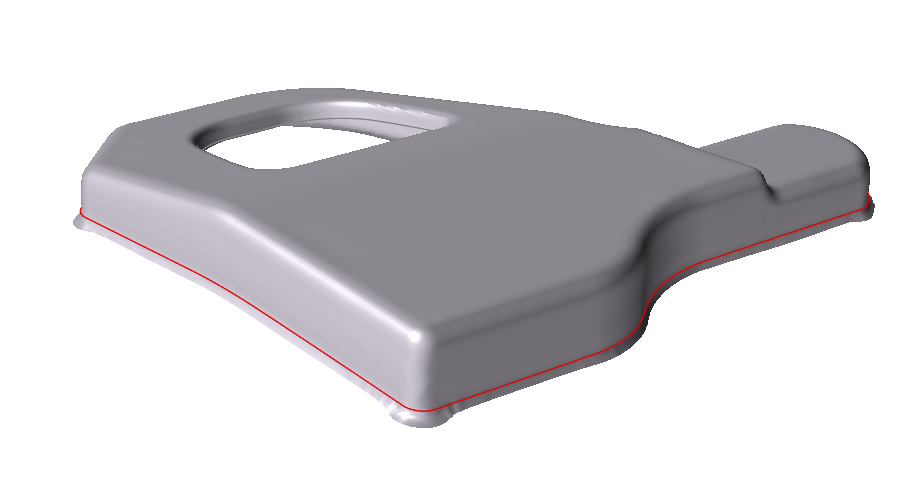
-
Click
 Predict.
Manually Replace Trim Line with Predicted
-
Click the Trim icon in your Operations.

-
On the secondary ribbon of tools that appears, click the
Trim icon.

-
Select the trim line that you would like to replace.
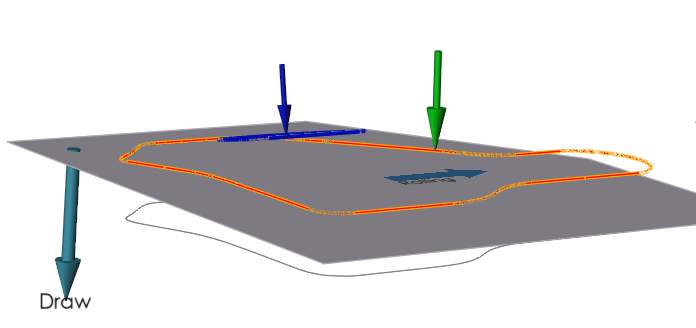
-
Click
 to remove the selection.
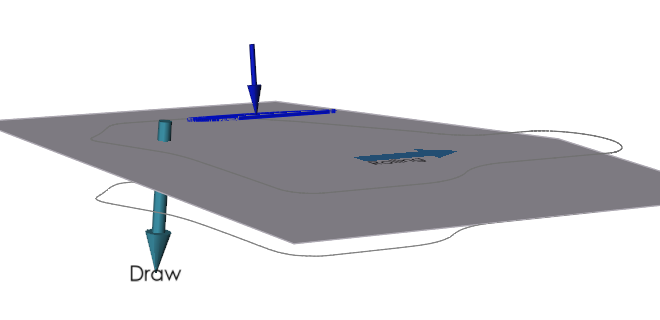
-
Select the new predicted trim line and click
 Assign.