This section shows you how to do the following:
You can define a parameter (/PARAMETER) as follows:
| • | Integer expression (INT_EXPR): Defines an expression of INTEGER parameters. |
| • | Real expression (REAL_EXPR): Defines an expression of REAL parameters. |
|
| 1. | From the main menu, select RADIOSS Tools > Parameter. |
The Parameter card tab opens.
| 2. | From the Notebook window, right-click, and then select Create New > REAL, INT, REAL_EXPR or INT_EXPR. |
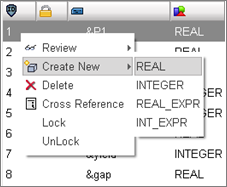
An ampersand (&) indicates a parameter.
| 3. | The appropriate material subpanel opens for you to enter the following: |
| • | For Title*, enter a new name. |
| • | For [PARAM_NAME], enter a parameter name. |
| • | For [PARAM_VALUE], enter a parameter value. |
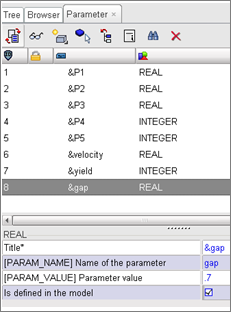
| 4. | Save, Close or Cancel your entries. |
|
| 1. | From File, select Export (or Import) > RADIOSS. |
The RADIOSS output tab opens.
| 2. | Enter a new filename (example: *_export_0000.rad), and then click OK. |
| 3. | Locate and open the file that was just created. |
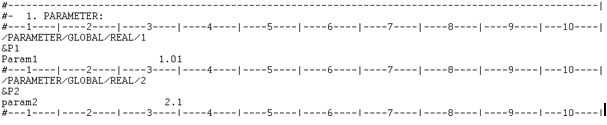
| 4. | In the exported file, each parameter is defined in a RADIOSS Block Keyword as you see below: |
|
| 1. | From the Parameter tab, select a parameter. |
| 2. | Click the Cross Reference icon: |
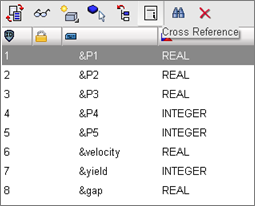
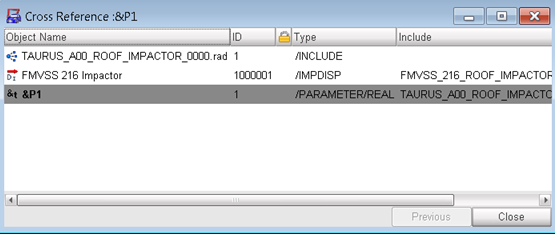
The Cross-Reference dialog opens and displays the parameter that has been cross- referenced along with the attribute (field) associated with the parameter:
|
Associating a Parameter
| 1. | Right-click a parameter, and then select Select Parameter as below: |
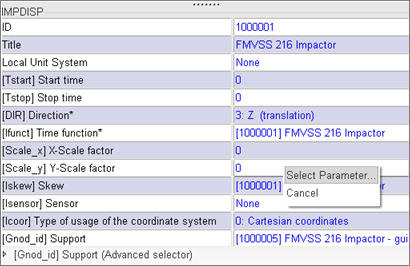
The Select in Model dialog opens:
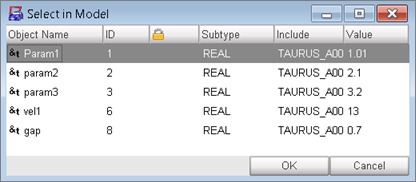
| 2. | From the Select in Model dialog: select a parameter, click OK, and then Save. |
Disassociating a Parameter
| 1. | From the appropriate card tab, select a parameter. |
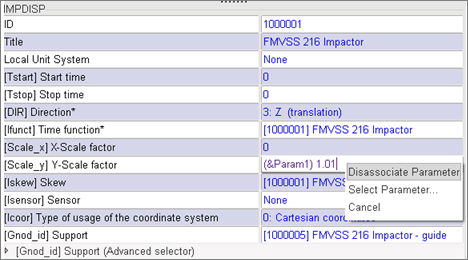
| 2. | Right-click a parameter, and then select Disassociate Parameter. |
Only the value remains intact.
|


