Transfer Material
The Transfer Material function  allows material, interaction data, meta-particles and Material Block data to be stored in a database file and transferred between simulations. Bulk Materials also contain the Particle Shape and Size Distribution information.
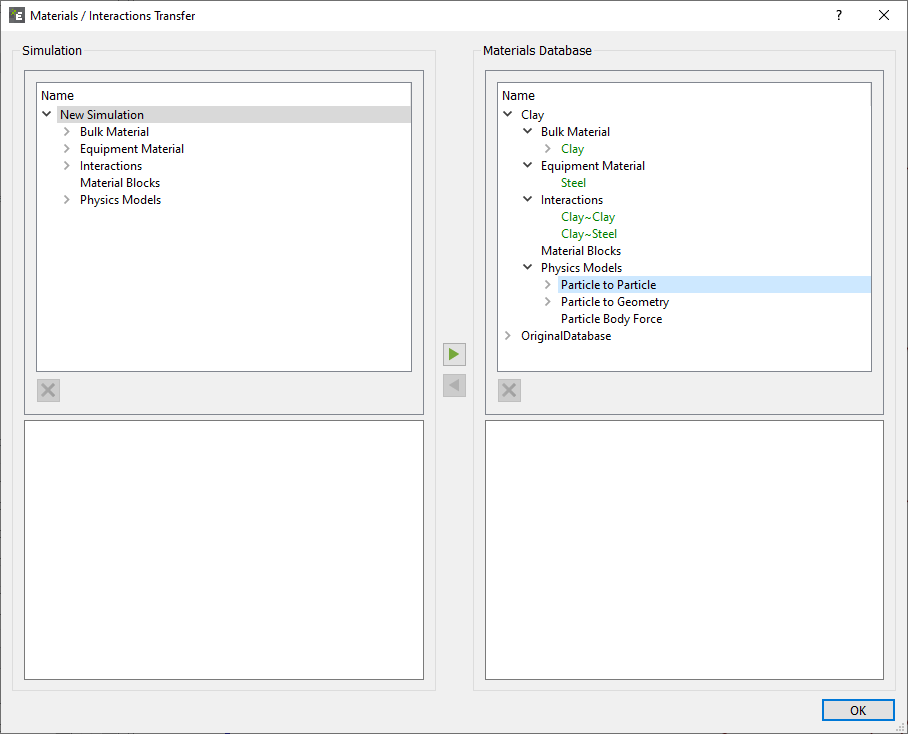
The Materials Database supplied with EDEM contains no example material types.
By default, the Materials Database (MaterialsDB.h5) is installed to the My Documents > Altair > EDEM folder. If you move the Materials Database (for example to a shared network folder for use by multiple clients), remember to update the location information in EDEM. To do this, select Tools > Options > File Locations then browse to the new location.
Transferring Materials to and from the Materials Database:
Any material or interaction defined in a model can be transferred to the materials database for use in other simulations. Similarly, materials and interactions can be imported from the database into your model.
To transfer a material to or from the database:
- Under the Bulk Material tab right click and choose Transfer Material. The Transfer dialog box appears.
- Click on the material to transfer. The material's properties are displayed at the bottom of the dialog.
- Click the appropriate arrow to transfer the material to or from the database.
If a material in the model and one in the database have the same name but different properties they are highlighted in red to indicate the conflict. If you continue with the transfer, one material will overwrite the other. If two materials have the same name and the same properties they are both highlighted in green.
If a meta-particle is in the simulation which matches the meta-particle name but is a different particle definition in the database it will be highlighted in red. If there is a miss-match with particle properties of the particles used to construct the meta-particle they will be highlighted yellow.
Equipment Materials will automatically be assigned to the Equipment Material section and Bulk Materials will automatically be assigned to the Bulk Material section of the Creator Tree. However the interaction information has to be transferred separately.
Adding Materials and Material Interactions to the Database:
Materials and material interactions can be added to the database by transferring from an existing simulation.
Note that materials defined in your database are not automatically added to any model. All materials used in a model must be defined directly in that model or explicitly transferred from the materials database.
Save Material Block
By clicking this option, the particles inside the current simulation domain are stored in the form of a Material Block in the Material Database. The current simulation domain is defined as the bounding box as specified in the Creator Tree > Environment > Domain at the time step that the save material block option is selected. Saving a Material Block automatically saves the Bulk and Equipment Materials used for it together with the corresponding interactions. All this data will be available in any other EDEM deck through the Material Database.
The Contact Model specific information is also saved, for example if the Bonding V2 model is used the bond contact information is stored in the material block.
The purpose of this tool is to generate a bed of material just by assembling multiple copies of a Material Block. An alternative use of the Material Block is to take the output of one simulation and use it as an input to another, using the Dynamic Block Creation functionality.
In either case an initial simulation to obtain the Sample Block is necessary prior to moving back to the Creator to save the Material Block into the Internal Materials Database.
See “Add Material Block” in the Factories section of the Creator documentation.