Detect interferences and conditions of tangency between parts, then view detailed
results on where they occur in a motion analysis.
Prerequisite: Run a motion analysis.
To use Interference Detection:
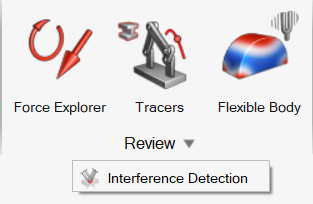
Navigate to the Review section on the Motion ribbon,
then select Interference Detection.
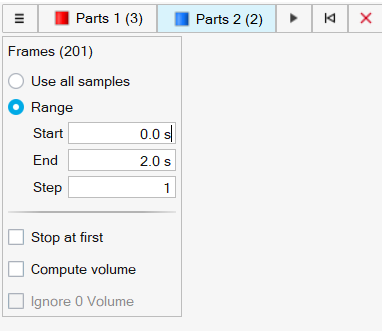
The guide bar appears.
Select parts for Parts 1.
Note: If you only use one set of parts for the search, the
search will be performed between all parts in the set. If you use two sets
of parts, (Parts 1 and Parts
2), the search will run between the selected parts in opposing
sets.
Optional: Select parts for Parts 2.
The number of parts selected appear in parenthesis in the guide bar, and
a filtering window appears.
Filter the search.
To
Do this
View the number of frames used in the search
In the filtering window, refer to the
Frames section. The number in
parenthesis shows the number of frames being used in the
current search.
Search all steps in the analysis for
interferences
In the filtering window, select Use all
samples.
Specify when to start and end the search
In the filtering window, select
Range, then enter values for
Start and
End.
Specify steps to skip over in the search
In the filtering window, select
Range, then enter a value for
Step.
Stop the search at the first detected
interference
In the filtering window, turn on Stop at
first.
View maximum interferences
In the filtering window, turn on Compute
volume.
Exclude interferences with volume values of 0 from your
search
In the filtering window, turn on Ignore 0
volume.
Reset the part selections and restore the default guide
bar
In the guide bar, click .
Exit the tool
In the guide bar, click .
In the guide bar, click to apply the filters and run the search.
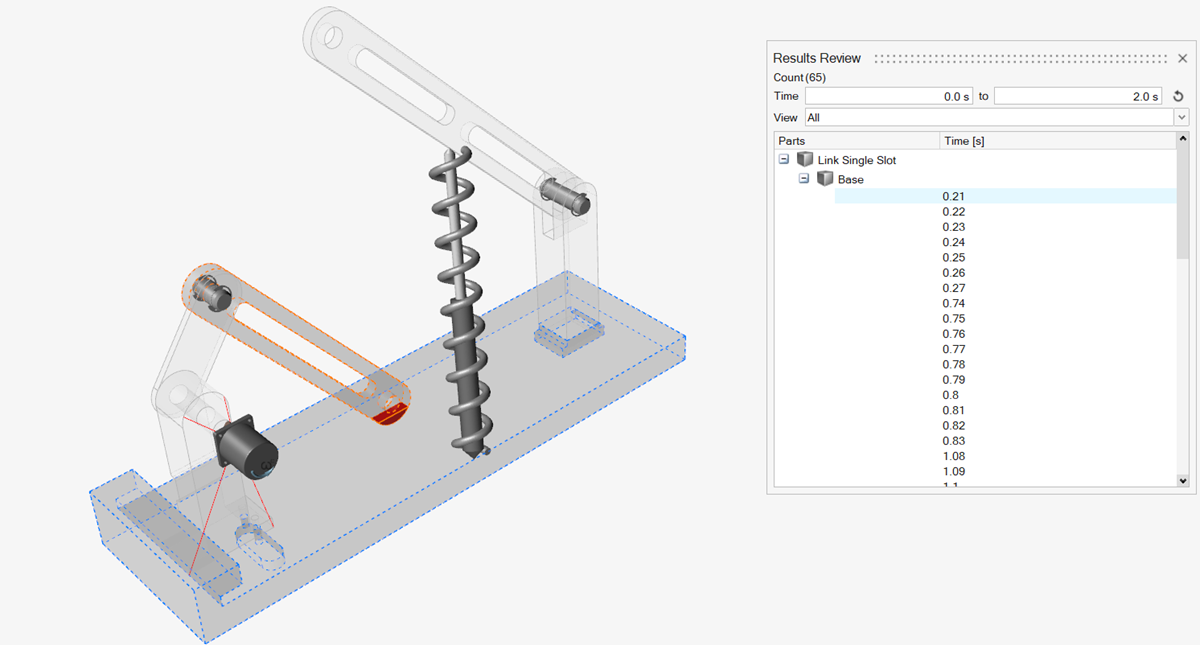
The Results Review window appears.
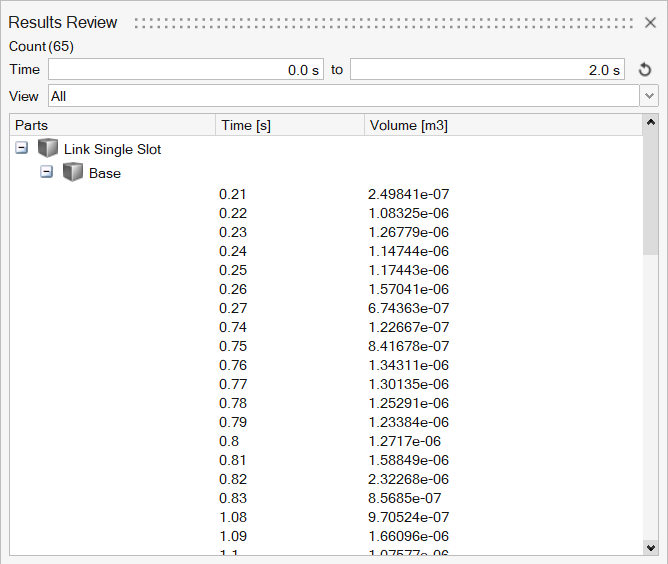
Click + next to part names to show the list of
interferences, their corresponding times, and calculated volume.
Review the results.
To
Do this
View detected interferences in the model at a specific
time
In the Results Review window, click on a Time
[s] entry in the list of detected
interferences. The corresponding instance of the
interference result will highlight red in the model.
View the number of detected interferences
In the Results Review window, refer to the
Count section. The number in
parenthesis shows the number of detected
interferences.
Filter detected interferences by time range
In the Results Review window, enter start and end times
in the Time section.
View all detected interferences
In the Results Review window, select the
View dropdown menu, then select
All.
View only the first detected interference
In the Results Review window, select the
View dropdown menu, then select
First Interference.
View parts included in the detected interferences
In the Results Review window, review the list of
Parts.
Restore default values in the results window
specifications

 .
. .
. to apply the filters and run the search.
The Results Review window appears.
to apply the filters and run the search.
The Results Review window appears.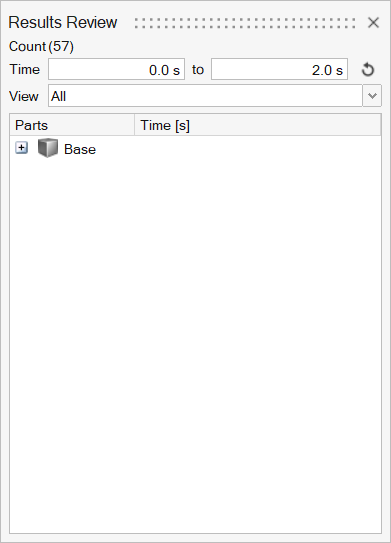
 .
.