Create and Edit Space
Space is a three-dimensional, acoustic element supporting acoustic modes.
-
From the Model ribbon, click the tool.

Figure 1. -
From the guide bar, select one of the following to
create space.
Option Description Bounding - From the guide bar, select
Bounding for properly closed
entities, either surfaces or SEA entities like a plate or shell.
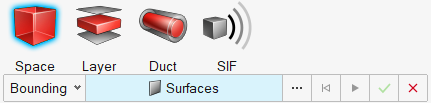
Figure 2. - Click a Surface, Plate, or Shell subsystem. If all subsystems or surfaces create a closed entity, then it creates a cavity.
Drag - From the guide bar, select
Drag for extruding any surface/SEA
structural 2D entities to create a cavity.

Figure 3. - Select the surfaces to drag.
- Use the Guides option or the microdialog to align the cavity's direction.
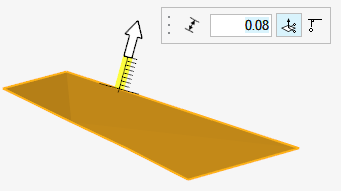
Figure 4. - From the guide bar, click
 to define advanced options.
Projection - From the guide bar, select Projection to extrude multiple subsystems to a fixed plane.
- From the drop-down menu, select Surfaces or SEA Subsystems to select multiple surfaces or subsystems that need to be dragged.
- Use the Guides option or the microdialog to align the cavity's direction.
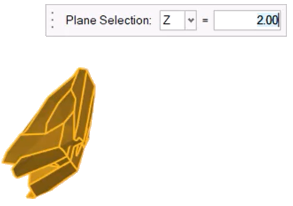
Figure 5. - Click and select Merge cavities at shared
surfaces to get a single cavity.Important: The cavity created through Projection cannot be reversed, as Undo is not an available option. You must delete and recreate it.Note: You may need to resolve some connection problems manually.
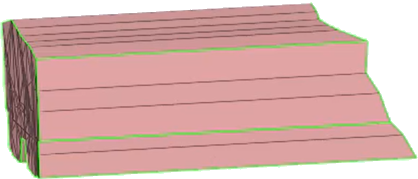
Figure 6. Typical result
- From the guide bar, select
Bounding for properly closed
entities, either surfaces or SEA entities like a plate or shell.
-
Once you define a properly closed entity, a microdialog
is displayed, which you can use to assign properties,
 , and damping,
  .
.

Figure 7.
Figure 8.
Figure 9. -
Click and to assign properties and damping, respectively.
Click
 when finished.
-
Click Create to create space.

Figure 10.The parameters required to create a space subsystem are updated. -
From the microdialog, click
 to edit the subsystem and update the parameters
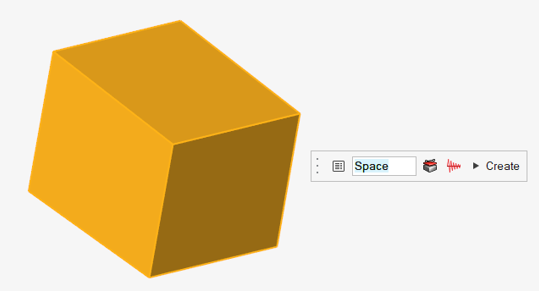
Figure 11.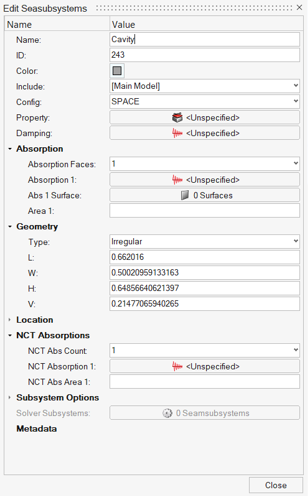
Figure 12. Cavity Entity Editor- Name
- Specify unique name.
- ID
- Specify unique ID.
- Config
- Specify the element type.
- Property
- Specify the property parameter based on the element type.
- Damping
- Specify damping to the subsystem.
- Absorption Faces
- Define or select number of absorptions to be defined.
- Absorption 1
- Define or select the absorption entity.
- Abs 1 Surface
- Select the surfaces of the cavity that the absorption must be defined for.
- Area 1
- Define the area to overwrite the area calculated from the surface, if needed.
- Geometry
- Based on the element type, update geometry parameters.
- NCT Absorption
- NCT absorption is automatically added after solving. NCT Absorption is added only when there are NCTs to SEA structural subsystems (plate and shell) connected to a cavity.
- Subsystem Options
- For experienced users, expand the Subsystem Options to change the default choices for the SEA Subsystems for all element types. For certain structural element types, use these options to adjust the default bending stiffness or conductance of the element and add non-structural mass, component mass, or fluid loading to the element when the options have been changed.
- Damping
- Assign a damping model to the element. From the Damping field
drop-down menu, select a damping model. This list contains all
predefined models which apply to the current element type. Click
to display advanced damping options
that you can use to define additional damping models.
- Properties
- Assign a property model to the element. From the Property field
drop-down menu, select a property model. The element materials and
cross-sectional parameters defined in the selected Property record
are displayed. Property records can be used to simplify the model
definition in cases where many elements have the same properties.
Click to display advanced property options
that you can use to define additional property models.
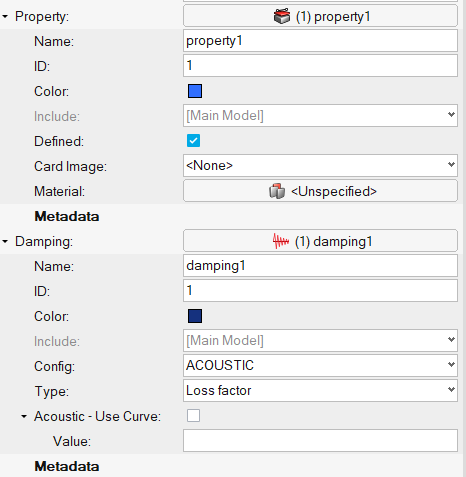
Figure 13.